Note: All user data, except fingerprint data, will be automatically restored via your TimeMoto Cloud subscription. This guide will walk you through how to update the firmware and safely restore your user fingerprint data.
If you are using a TimeMoto TM-626 time clock but do not use fingerprints to clock in, then there is no need to follow these instructions. Please refer to the standard firmware update instructions to update your time clock to firmware version 3.8; see here.
If you are using more than one TimeMoto Clock, please perform this action on all of your TimeMoto clocks.
You will need a USB flash drive to perform the update and backup/restore the user's fingerprint data. The easiest way is to have 2 USB flash drives at your disposal, one for backing up and restoring your users' fingerprint data, the other for the firmware update.
The following guide helps you manage the process with only one flash drive.
The total update process consists of 3 main steps:
- Download the User Data from the TimeMoto terminal to a USB flash drive.
- Upgrade the firmware of the TimeMoto terminal
- Restore the User Data from the USB flash drive to the TimeMoto terminal
1. Download the User Data from the TimeMoto terminal to a USB flash drive.
Step 1: Prepare Your USB Flash Drive
- Take an empty USB flash drive and ensure it’s formatted to FAT-32. Please note that the USB flash drive capacity should not exceed 32GB. For instructions on how to format a USB flash drive in FAT-32, please see here.
- Make sure there are no files on the USB flash drive before proceeding.
Step 2: Insert the USB into TimeMoto Terminal
- Locate the USB port on the left-hand side of your TimeMoto terminal. You do not need to remove the clock from the wall unless there is too little space to insert the USB flash drive.
- Insert the prepared USB flash drive into this port.
Step 3: Navigate to the User Menu
- Press the [MENU] button on your TimeMoto terminal to access the user menu.
- Navigate to USB Management and press OK to confirm your selection.
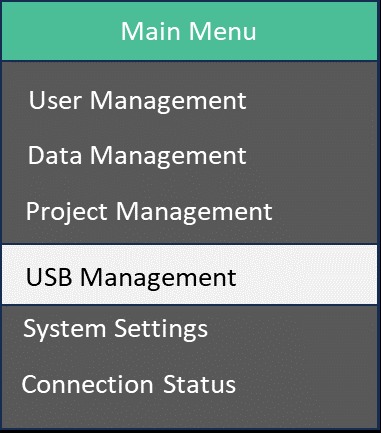
Step 4: Download User Data
1. In the USB Management menu, navigate to Download and press OK.
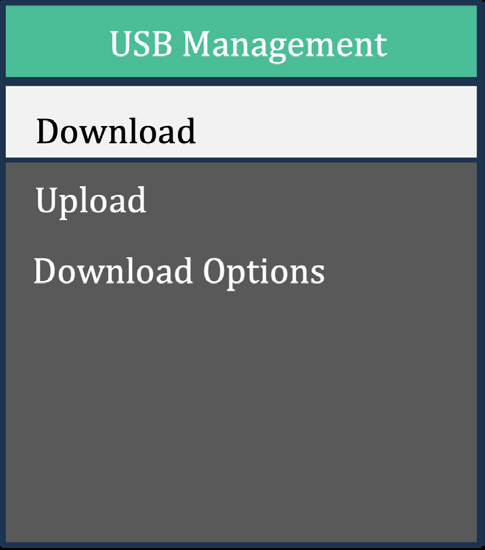
2. Next, scroll down to User Data and press OK again.
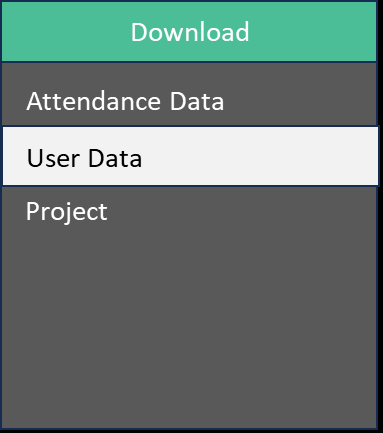
3. A screen will appear, indicating that data will be downloaded to your USB flash drive. Press OK to start the download.
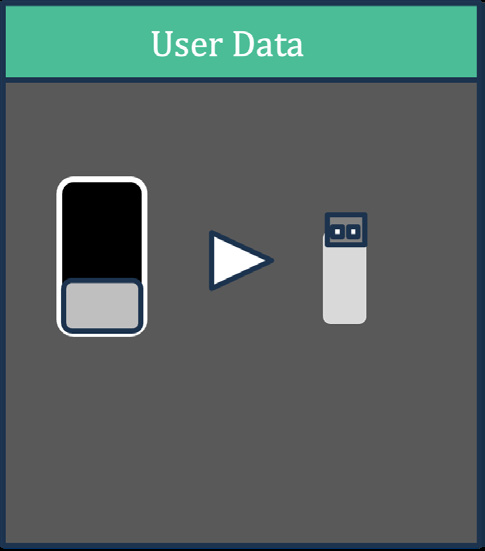
Step 5: Save the Downloaded File
- Once the download is complete, remove the USB flash drive from the terminal.
- The download will consist of multiple files
- Insert it into your computer and save the downloaded files to a location on your C: drive or your preferred location. This step is necessary because the USB flash drive needs to be empty before you place the firmware update file on it. See Element 2.
2. Upgrade Your TimeMoto Clock's Firmware
Please follow the standard update instructions. These can be found here.
3. Restore Your User Data via USB Flash Drive
Step 1: Place the files with User Data (see Element 1) back on your USB Flash Drive
- Make sure there are no files on the USB flash drive before proceeding.
- Make sure you copy all files to the USB Flash Drive that you have previously downloaded.
Step 2: Insert the USB Flash Drive in the Time Clock
- Locate the USB port on the left-hand side of your TimeMoto terminal.
- Insert the prepared USB flash drive into this port.
Step 3: Navigate to the User Menu
- Press the [MENU] button on your TimeMoto terminal to access the user menu.
- Navigate to USB Management and press OK to confirm your selection.
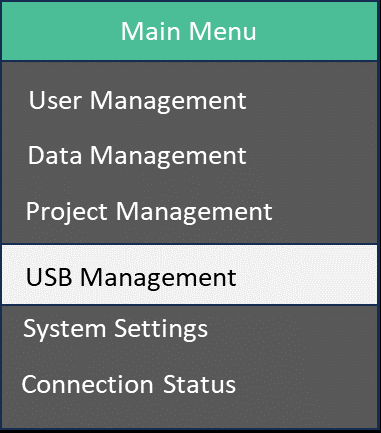
Step 4: Upload User Data
1. In the USB Management menu, navigate to Upload and press OK.
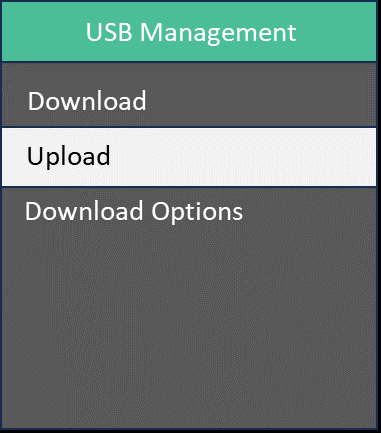
2. Next, scroll down to User Data and press OK again.
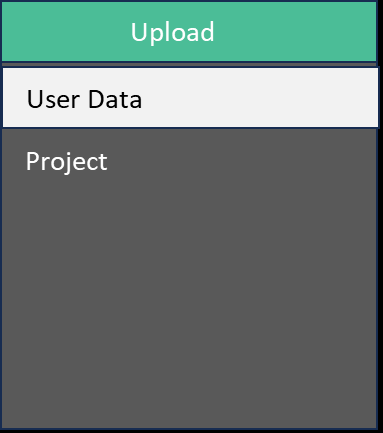
3. A screen will appear, indicating that data will be uploaded from your USB flash drive. Press OK to start the upload.
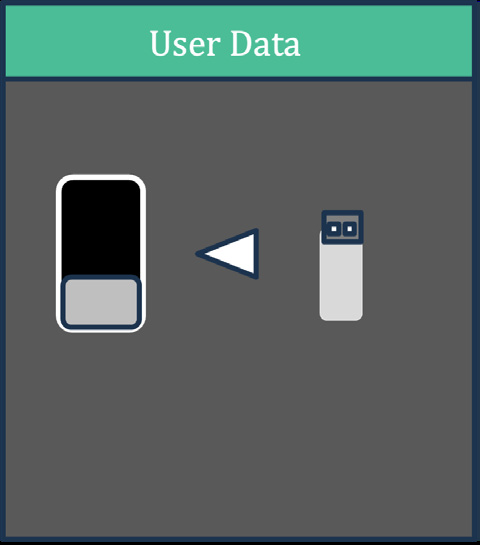
Step 5: Remove the USB flash drive
Once the upload is complete, remove the USB flash drive from the time clock. The device will prompt you to press OK to restart. After the clock has restarted, it will show the date and time. After this, the update is complete.
User data, including fingerprint data (TM-626 only), is now restored.
Any questions?
Looking for answers but not sure where to start? Check out our Glossary! It's a great resource to help you find the information you need. If you need further assistance, please contact us via the Contact Form.
Comments
0 comments
Please sign in to leave a comment.