This update applies to the following models: TM-818SC, TM-828SC, TM-838SC.
We have developed a new firmware update for the TimeMoto TM-818SC, TM-828SC, and TM-838SC time clock systems.
Before You Begin...
Step 1: Identify the Device Model
You can check your device type in your clock's menu. Open the [Menu] and select [System Info] > [Device Info]. Under "Device Name", you see your device type.
| ⚠️ Important: This firmware update is only for TM-818SC, TM-828SC and TM-838SC devices. Please do not follow these instructions or use the update file with any other device type, as it may cause damage to your device. |
Step 2: Check your Current Firmware Version
To check your current firmware version, go to the [Menu] > [System Info] > [Firmware Info]. At the top, you will find the firmware version.
⚠️ Important: Please update your device only if the current firmware version is one of the following:
- Ver 8.0.3.7-TM800-01
- Ver 8.0.3.7-TM800 2.1
- Ver 8.0.3.7-TM800 2.4
- Ver 8.0.3.7-TM800 3.0
- Ver 8.0.3.7-TM800 3.1
- Ver 8.0.3.7-TM800 3.3
- Ver 8.0.3.7-TM800 3.4
Devices with the firmware version 3.7, 3.9, 4.1, or any other firmware versions than listed above do not require an update.

Step 3: Make Storage Space
Before you begin with the update, it is recommended to remove old data from your TimeMoto device to ensure it has enough storage space to install the update. You can find out more about this topic here.
Download the Firmware Update File
To upgrade your time clock, you need to install a new firmware file on the device. Please click here to download the update file and save it on your computer.
| ⚠️ Important: This firmware update is only for TM-818SC, TM-828SC and TM-838SC devices. Please do not follow these instructions or use the update file with any other device type, as it may cause damage to your device. |
Install the Update on Your Time Clock
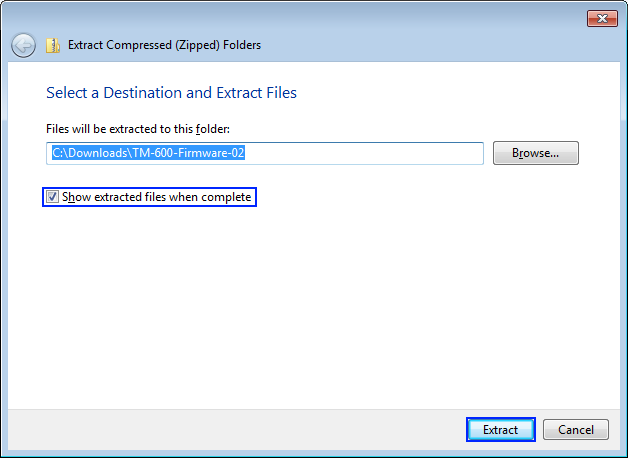
After downloading the file, unzip it.
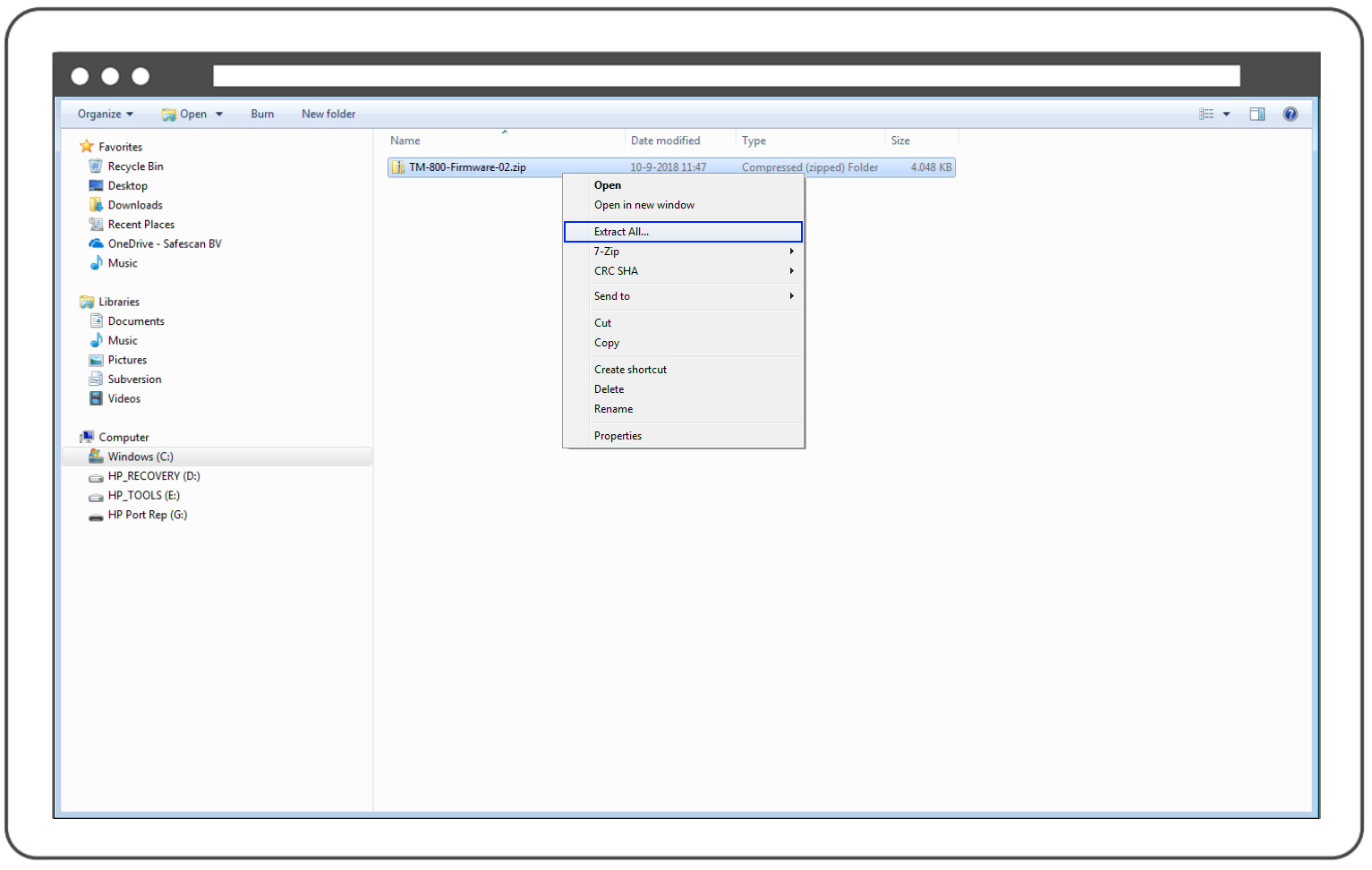 Right-click the file to see the options to unzip/unpack the file
Once you have extracted the files, you will see a file called emfw.cfg.
Plug a USB drive into your computer. Copy the file emfw.cfg from the unpacked folder on to the USB drive.
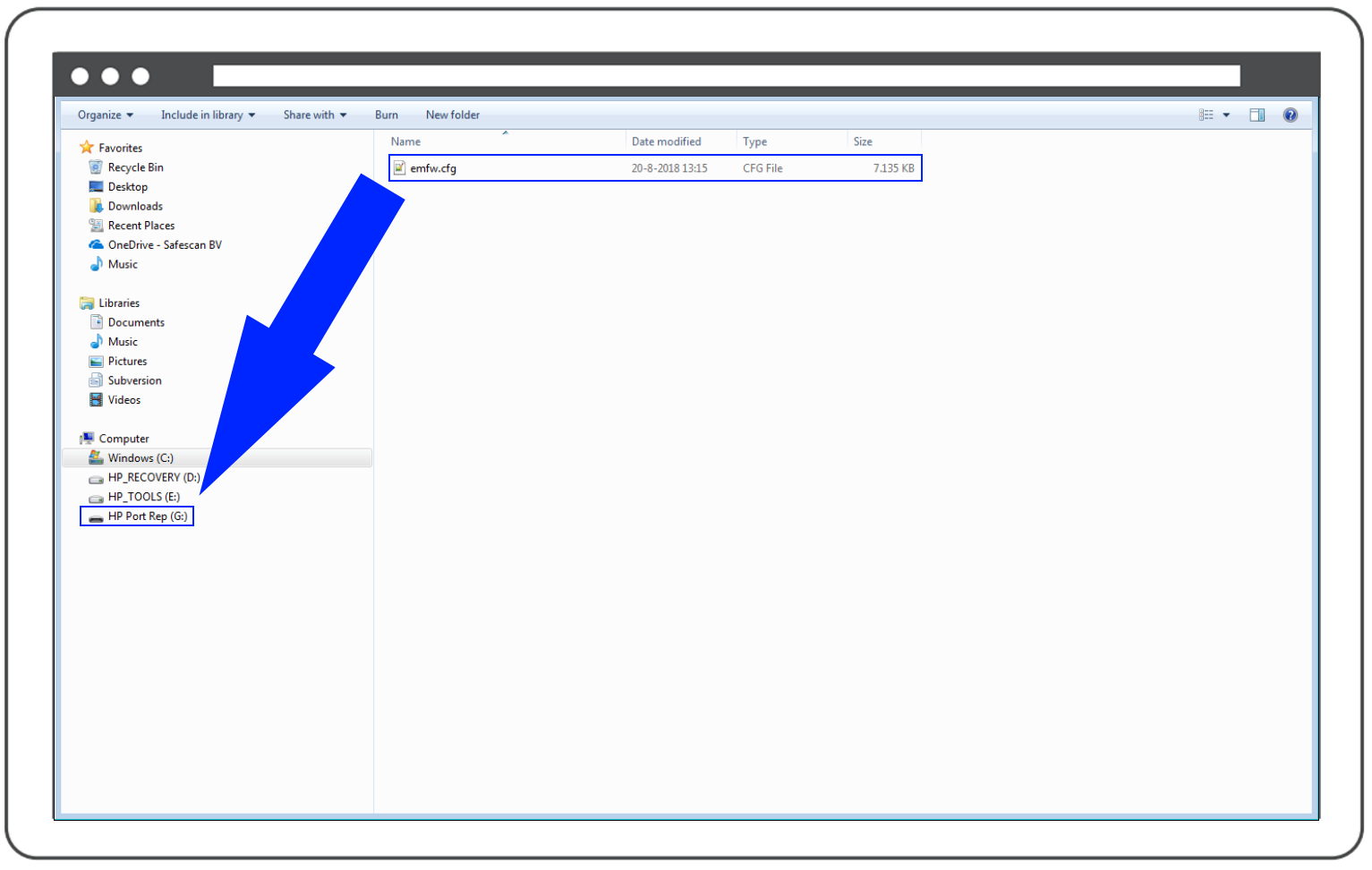
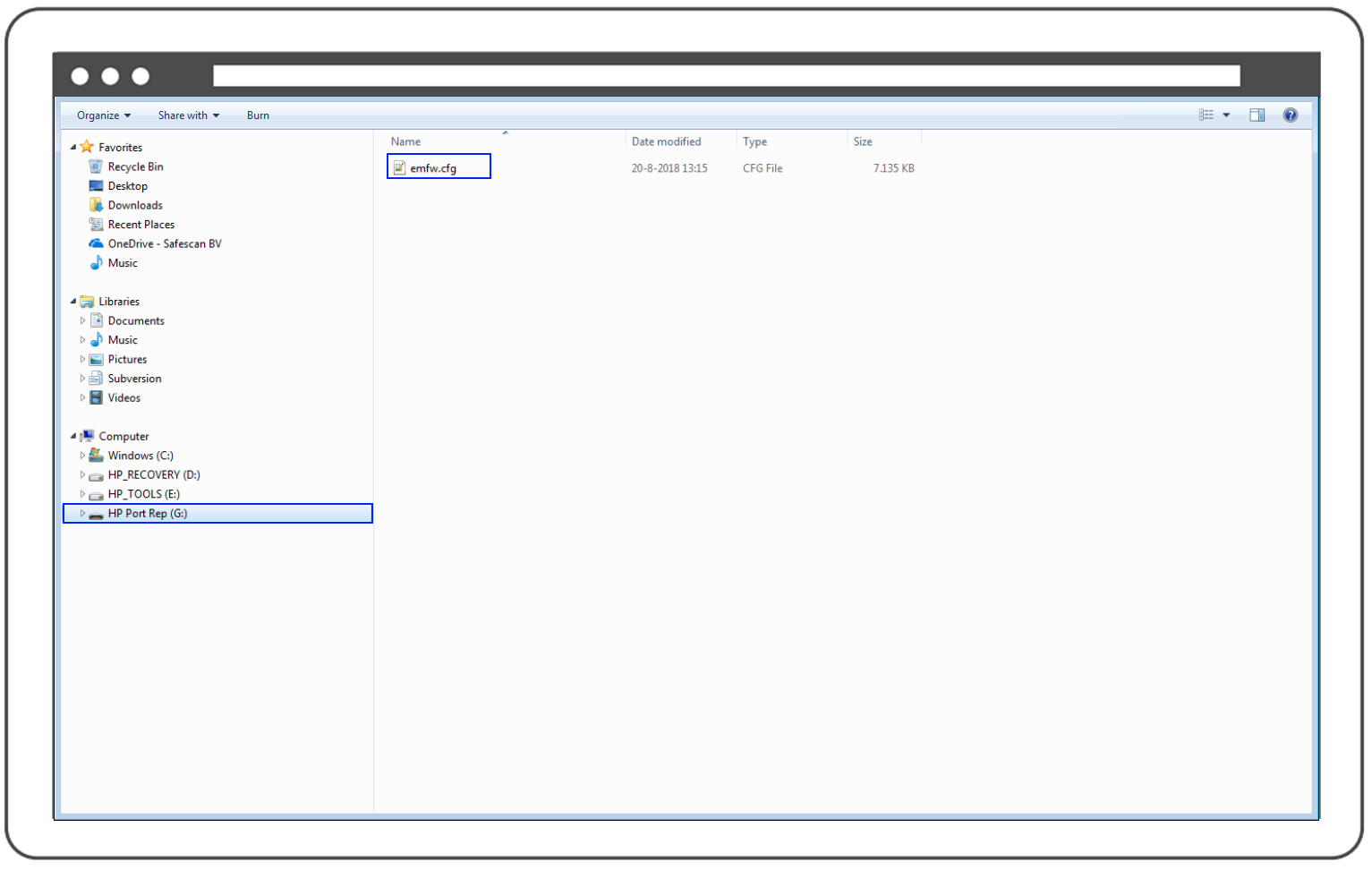
Copying the file to the USB drive should take only a few seconds. Click on the USB drive in your window to guarantee that the file has been copied into the root of the USB drive.
Next, plug in the USB drive into the USB port on the side of your TimeMoto Clock. Open the Menu of the system, and select [System Settings]. Press [OK] to open the system settings.
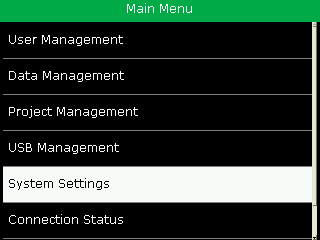
In [System Settings], navigate to [USB Upgrade] and press [OK].
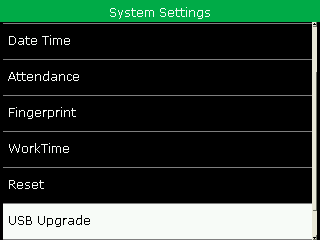
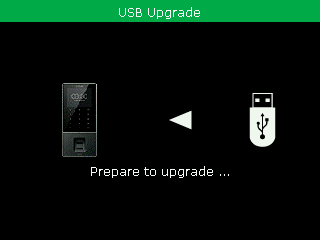
The time clock will now apply the USB update.
After the update has been successfully applied, the system has to be rebooted. Press [OK] to reboot the clock.
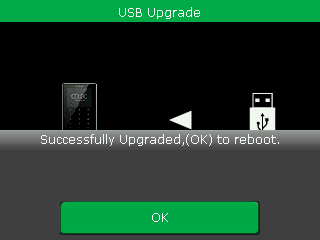
After the reboot, the system has been updated!
Checking Your Current Firmware Version
To check your firmware version, open the Menu of your time clock and select [System Info] > [Firmware Info]. At the top, you will find the firmware version.
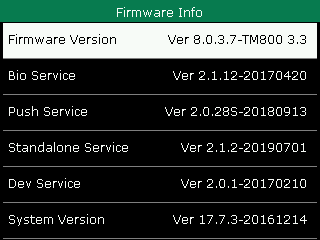
If the firmware version changes to Ver 8.0.3.7-TM800 4.1, you have successfully updated your time clock.
Any questions?
Take a look at our Glossary or reach out to us via the Contact Form.
Comments
0 comments
Please sign in to leave a comment.